How to Set the Order Your Gallery Images Appear In
The Media Order setting decides the sequence your images appear in on your site, so you can either arrange them by hand or let MetaSlider Gallery sort them for you by date or by filename. Every gallery keeps its own Media Order, and the order you choose applies to the thumbnails on the page and to the gallery window a visitor steps through.
How to Choose an Image Order
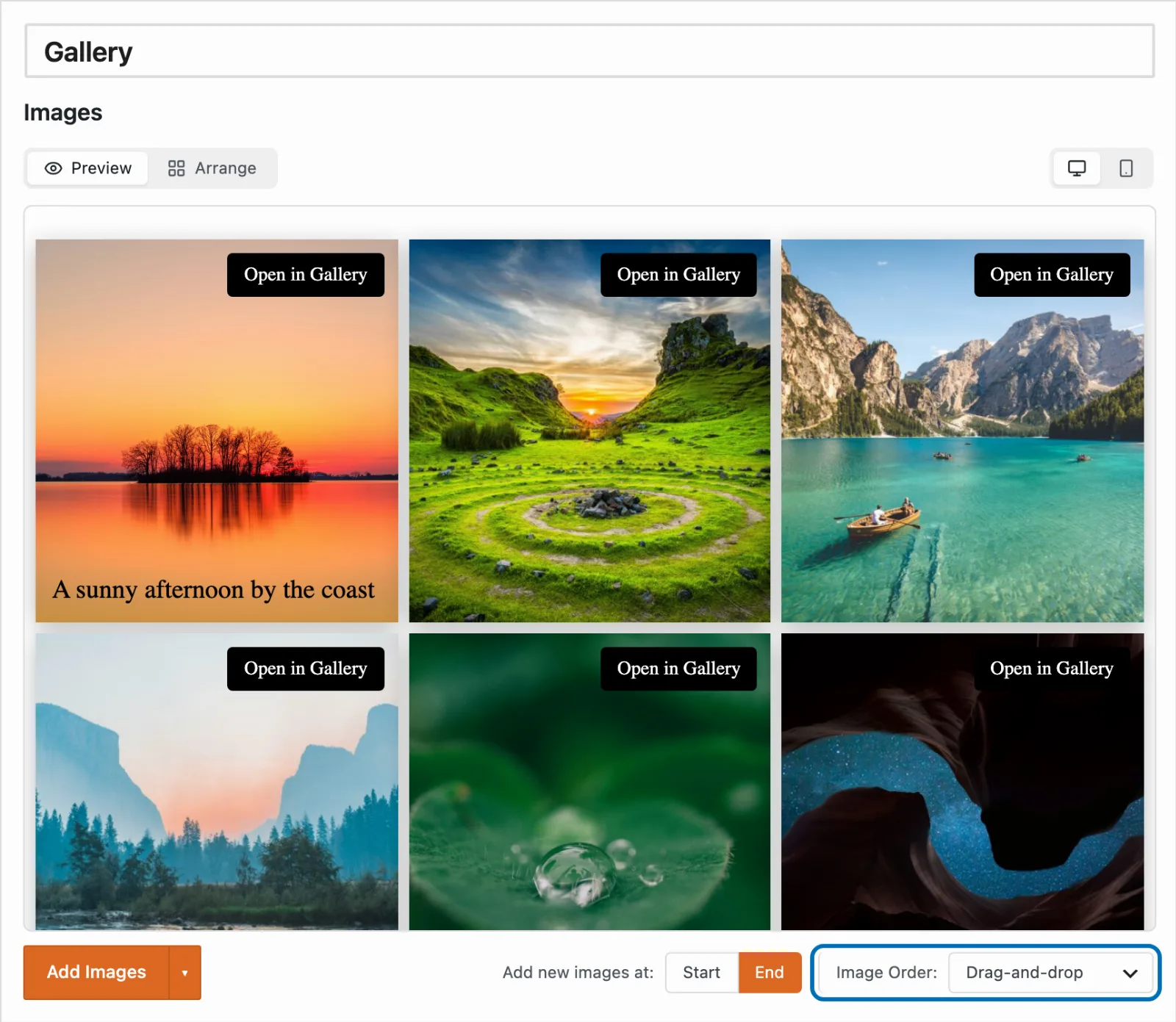
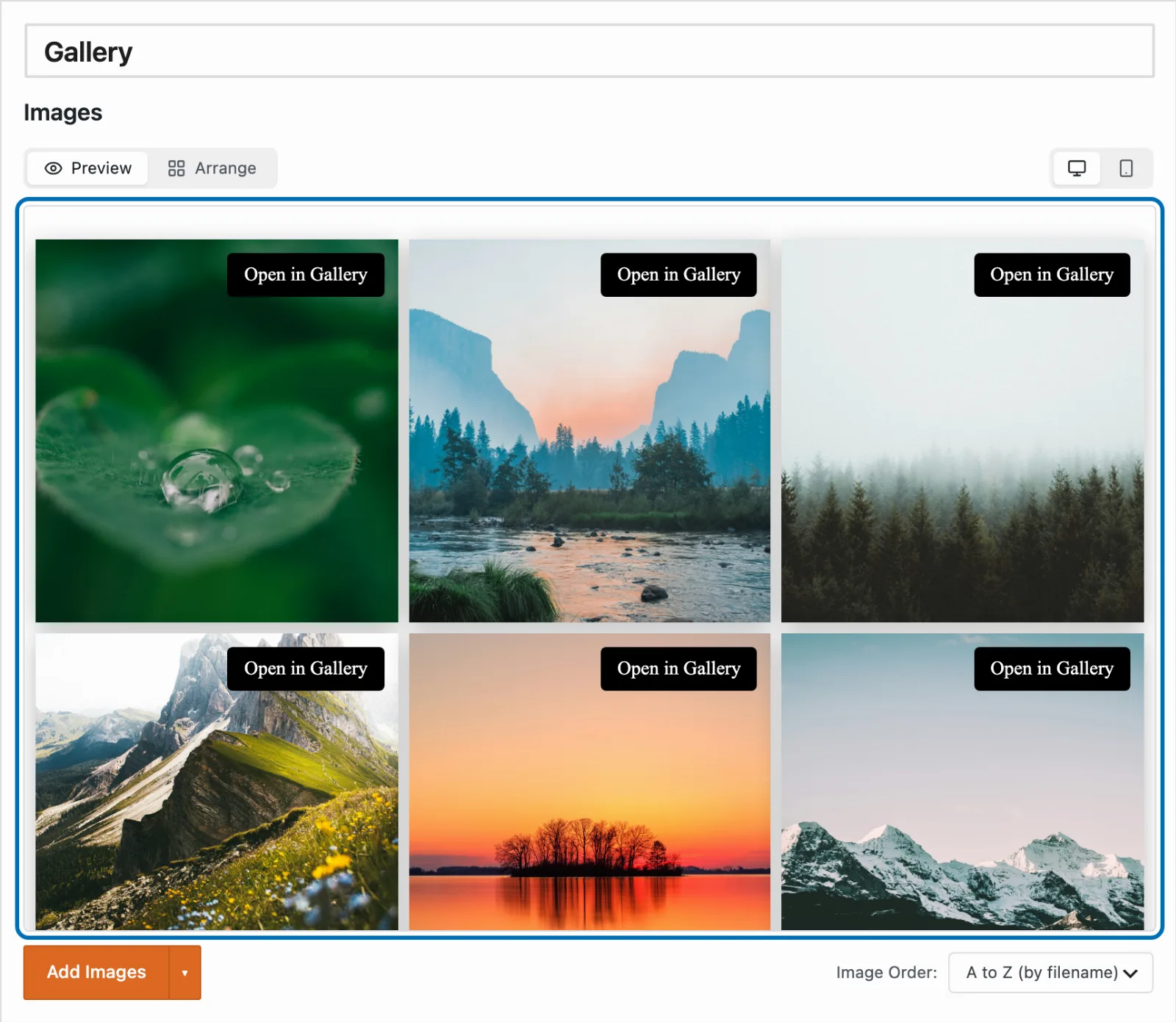
The Media Order dropdown sits in the bar below your images in the gallery editor, next to the 'Add Images' button. It offers six choices: 'Drag-and-drop', 'Newest First', 'Oldest First', 'A to Z (by filename)', 'Z to A (by filename)', and 'Random'. New galleries start on 'Drag-and-drop', which is the hand-arranged order you set yourself.
-
Open a gallery from your Galleries list, then look for 'Media Order:' in the bar below the images.
-
Open the dropdown and choose how you want the images sequenced.

-
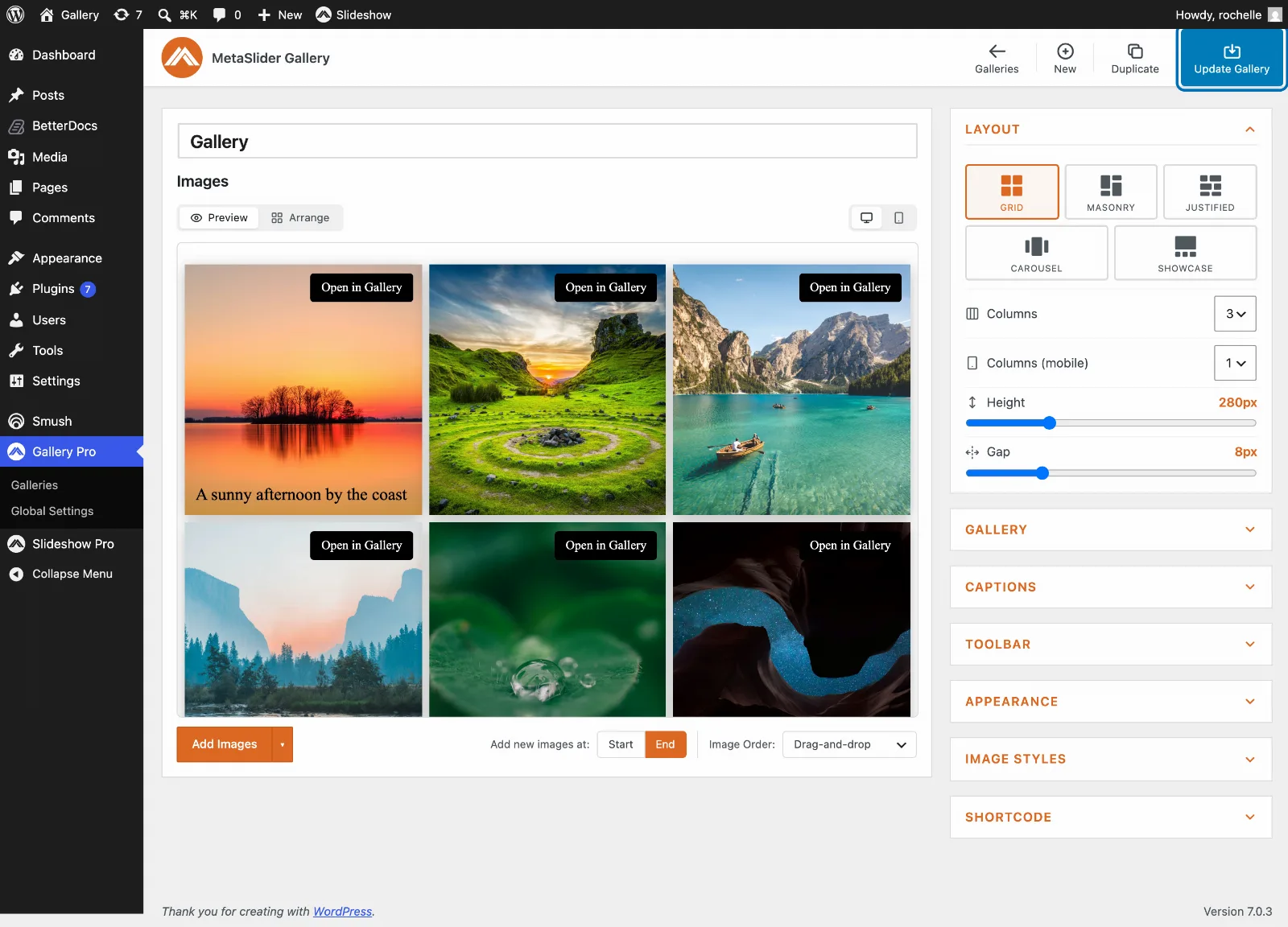
Choose 'Update Gallery' to save. The order you picked now applies wherever the gallery appears on your site.
How to Arrange Images by Hand
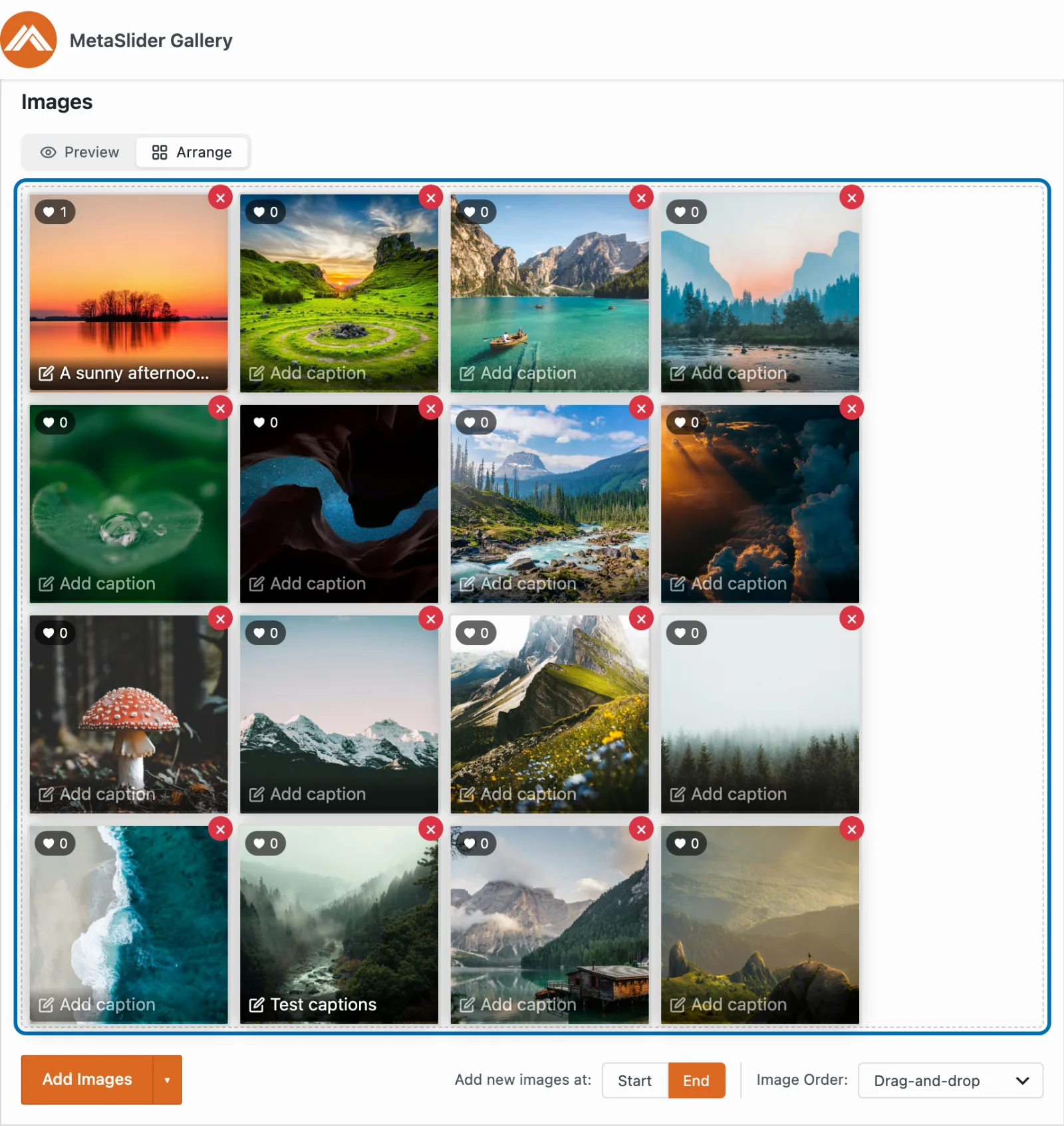
'Drag-and-drop' gives you full control over the sequence. Choose 'Arrange' above the images to see the thumbnail grid, then drag any thumbnail to a new position and the rest shift to make room. Alongside the dropdown you will also see 'Add new media at:' with a 'Start' and an 'End' choice, which decides where images land in that hand-arranged sequence when you add them.
-
Choose 'Arrange' above the images, then drag a thumbnail to the position you want it in.
-
Set 'Add new media at:' to 'Start' or 'End' to decide where the next images you add will join the sequence.

How to Sort Images Automatically
Choosing anything other than 'Drag-and-drop' hands the sequencing to MetaSlider Gallery. 'Newest First' and 'Oldest First' sort by the date each image was uploaded to your Media Library, while 'A to Z (by filename)' and 'Z to A (by filename)' sort alphabetically by the image's file name rather than its title or caption. 'Random' reshuffles the gallery for each visitor, so keep in mind that page caching on your site can hold one shuffle in place for everyone.
-
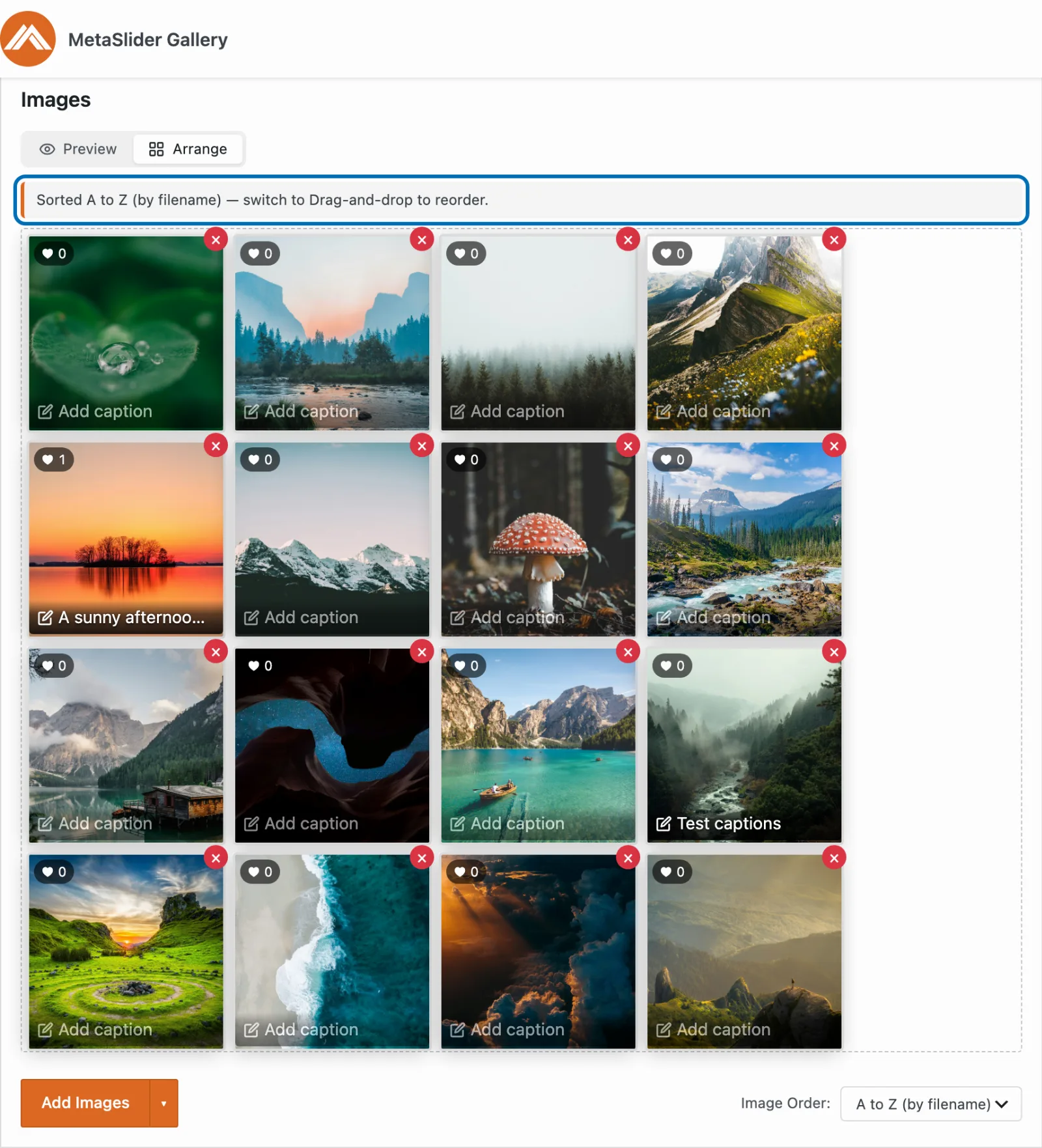
Choose a sort from the dropdown and watch the Arrange grid resequence itself to match, with a note above it confirming the sort that is in effect.
-
Drag-and-drop turns off while a sort is active, because MetaSlider Gallery is deciding the sequence. The 'Add new media at:' choice steps aside for the same reason, and both come back the moment you return to 'Drag-and-drop' — your hand-arranged order is remembered.

-
Choose 'Preview' to see the sorted gallery rendered the way your visitors will see it, then save when you are happy with it.
Your gallery now shows its images in the order you chose, both in the editor and on your site.