How to Add a Load More Button to a Large Gallery
Load More shows a set number of images to begin with and puts a button below the gallery that reveals the next set, so a gallery with hundreds of images no longer loads every one of them the moment someone opens the page. The images you have not revealed yet are never downloaded by the visitor's browser, which is where the saving comes from, and the gallery window a visitor steps through only ever contains the images that are on screen.
Load More is available on the Grid, Masonry and Justified layouts. Carousel and Showcase already show one image at a time, so the setting is hidden for them.
How to Turn On Load More
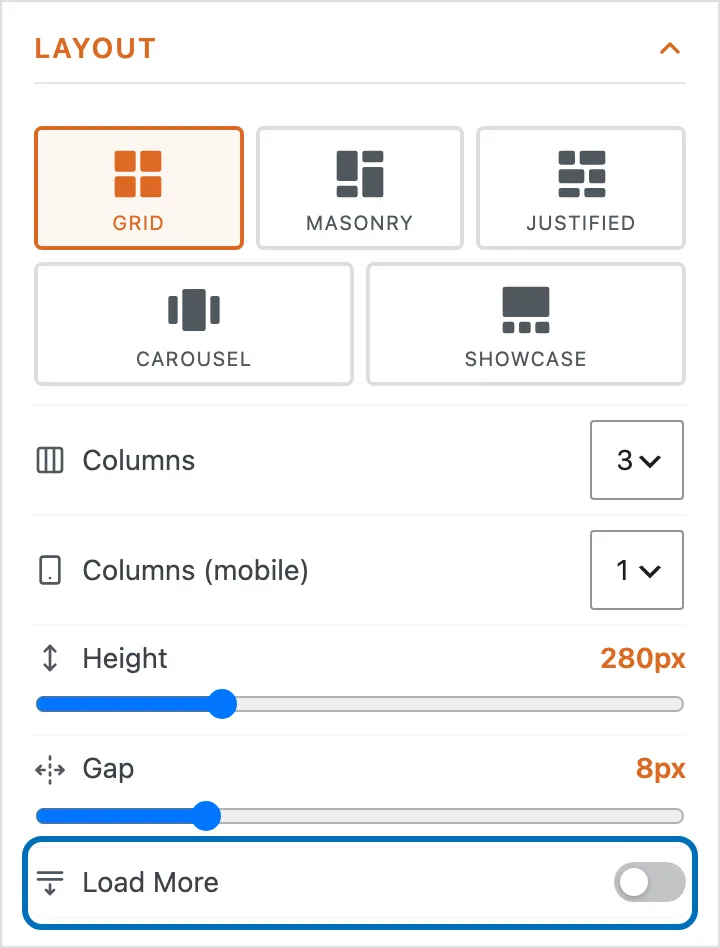
The Load More setting sits in the Layout panel of the gallery editor, below Height and Gap.
-
Open a gallery from your Galleries list and find 'Load More' in the Layout panel on the right.
-
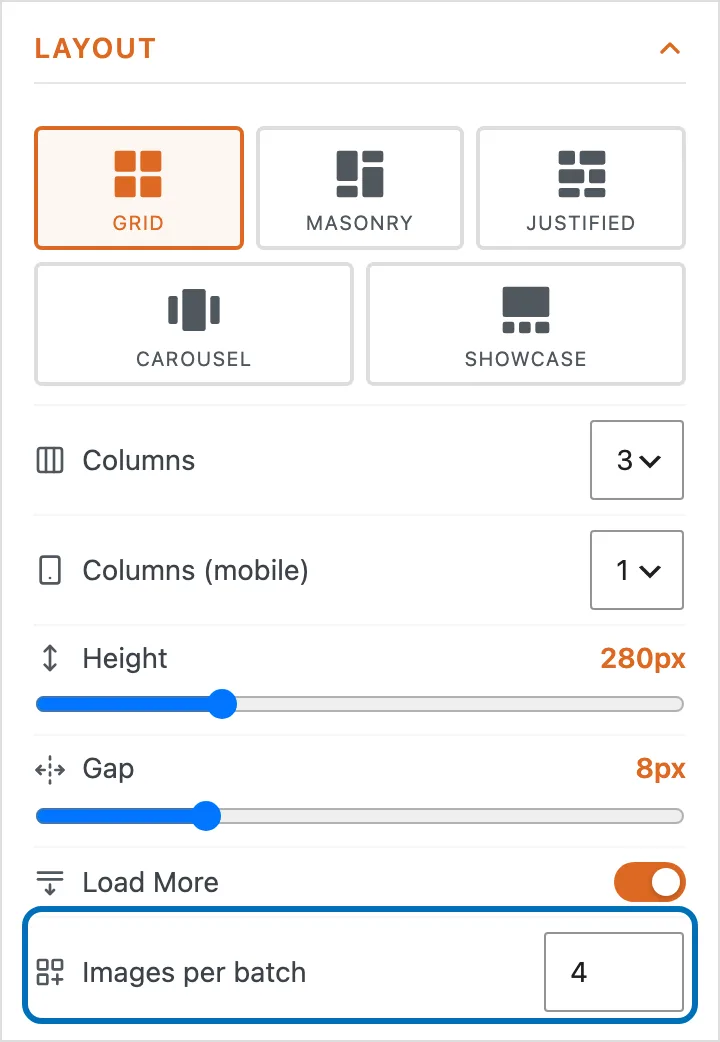
Turn 'Load More' on. A 'Media per batch' field appears below it.
-
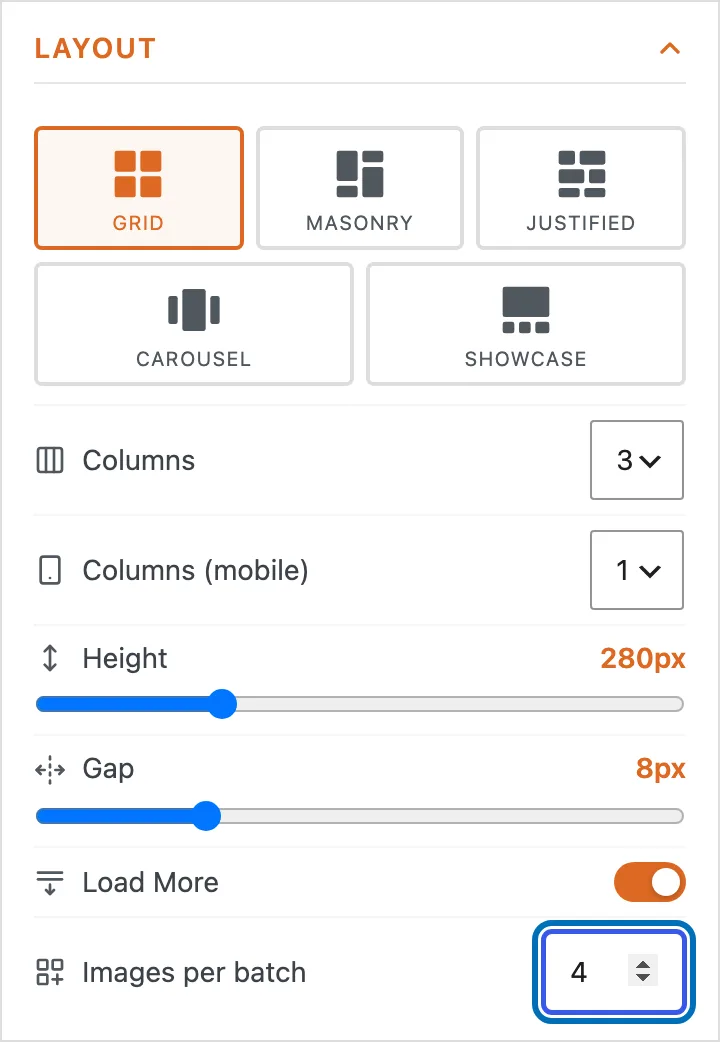
Set 'Media per batch' to the number of items you want visible at first. This is also how many each press of the button adds, so a gallery of 60 images with a batch of 12 opens with 12 and fills up over four presses. You can choose anything from 4 to 100.
-
Choose 'Update Gallery' to save.

How to Style the Load More Button
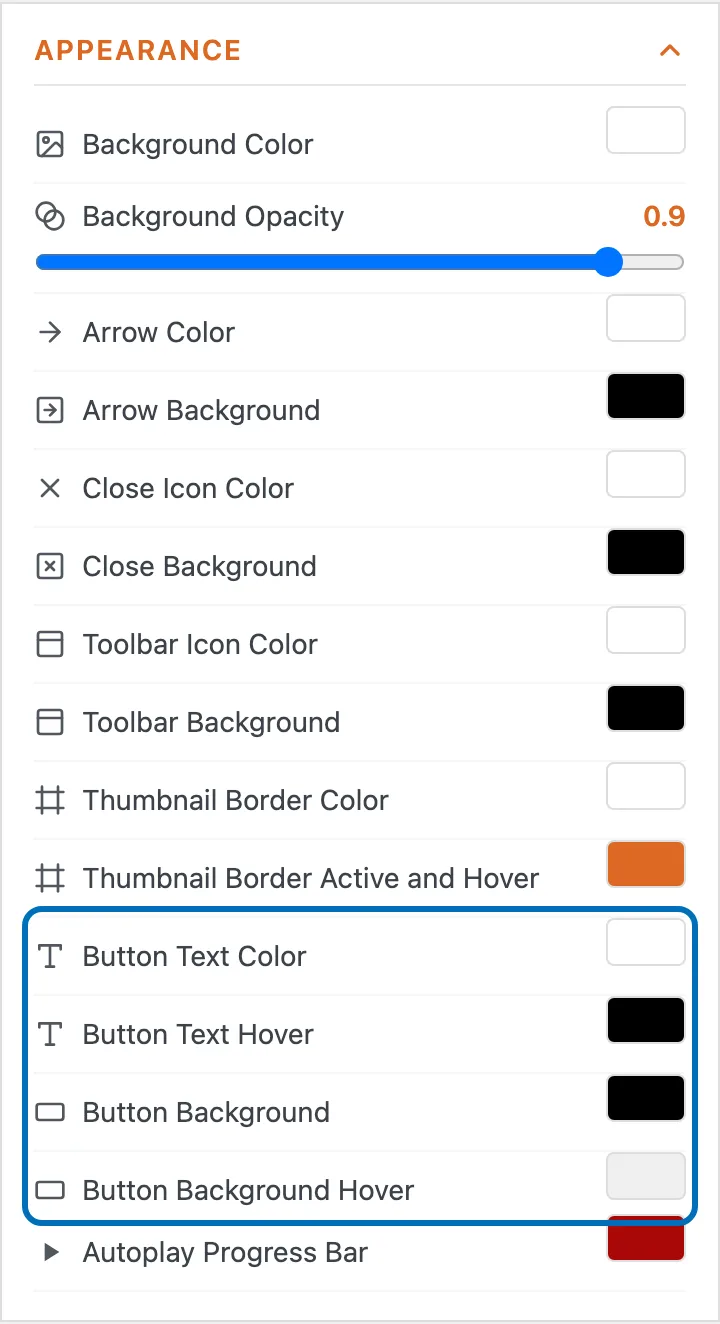
The Load More button uses the same colors as the 'Open in Gallery' button, which live in the Appearance panel. Turning Load More on is enough to make those color settings available, whichever way you have set 'Open with'.
-
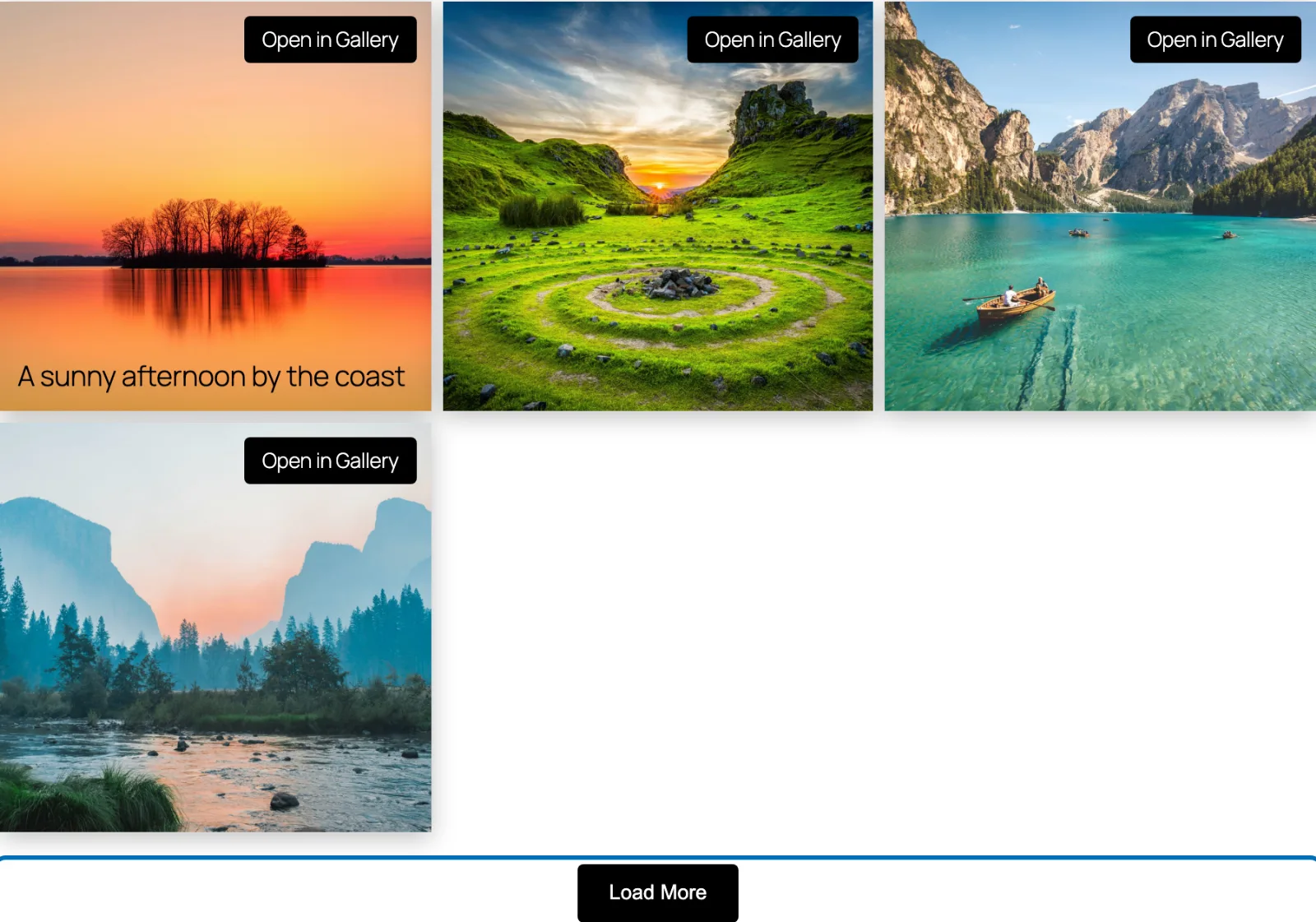
Open the Appearance panel and look for 'Button Text Color', 'Button Text Hover', 'Button Background' and 'Button Background Hover'. Pick the colors you want, then choose 'Update Gallery'. The Load More button and the 'Open in Gallery' button both follow them.
How to Check the Result
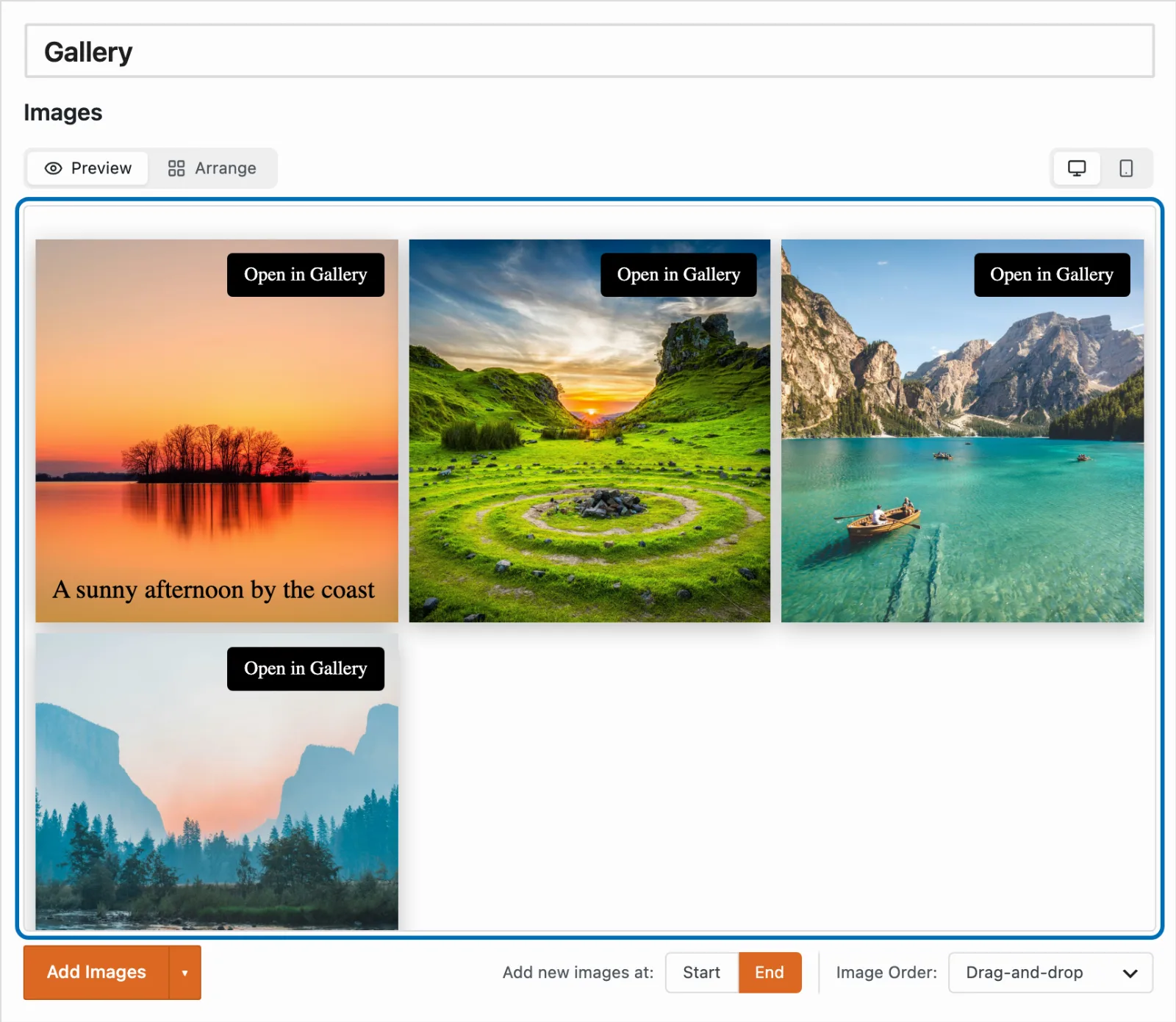
Choose 'Preview' above the images to see the gallery the way your visitors will, complete with a working button. The preview and your site run the same gallery, so what you press here behaves the same way once the page is live.
-
Choose 'Preview', then press 'Load More' to watch the next batch of images appear in place.
-
Save the gallery, then open the page where you have placed it. The button sits below the images in the colors you chose.
-
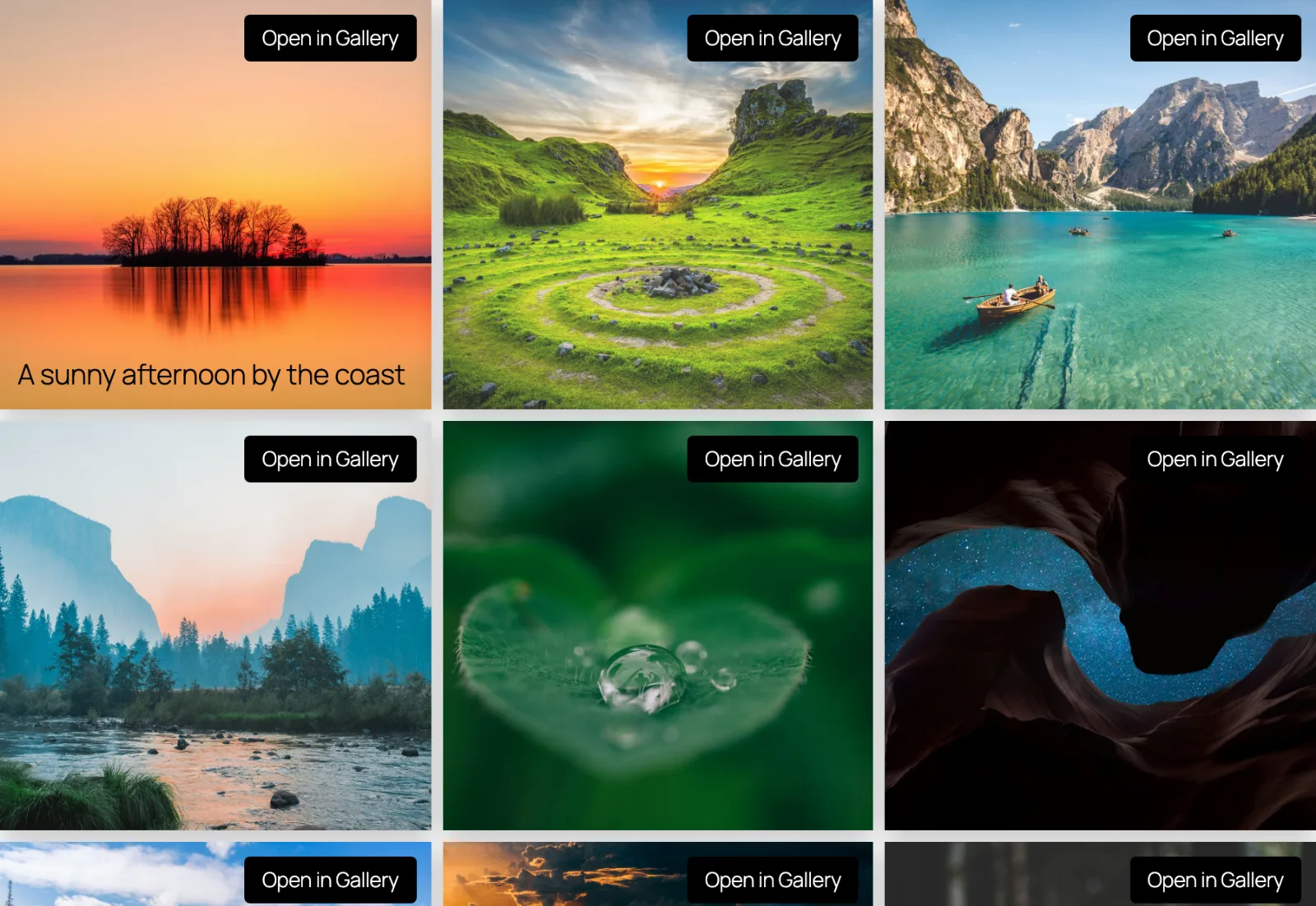
Press the button until every image is showing. The button removes itself once there is nothing left to reveal.
If a gallery holds fewer images than the batch size you set, nothing is hidden and no button appears, so there is no harm in leaving Load More on for your smaller galleries.
Your gallery now opens with a single batch of images and lets visitors ask for the rest.