How to Add Videos to a Gallery
MetaSlider Gallery can show videos from your Media Library alongside your images, and each video plays in the gallery window when a visitor clicks it. Videos follow the same layout, sizing, and style settings as the images in your gallery, so they sit neatly in the grid rather than standing out from it.
How to Add a Video
You add videos the same way you add images, and you can mix both in one gallery.
-
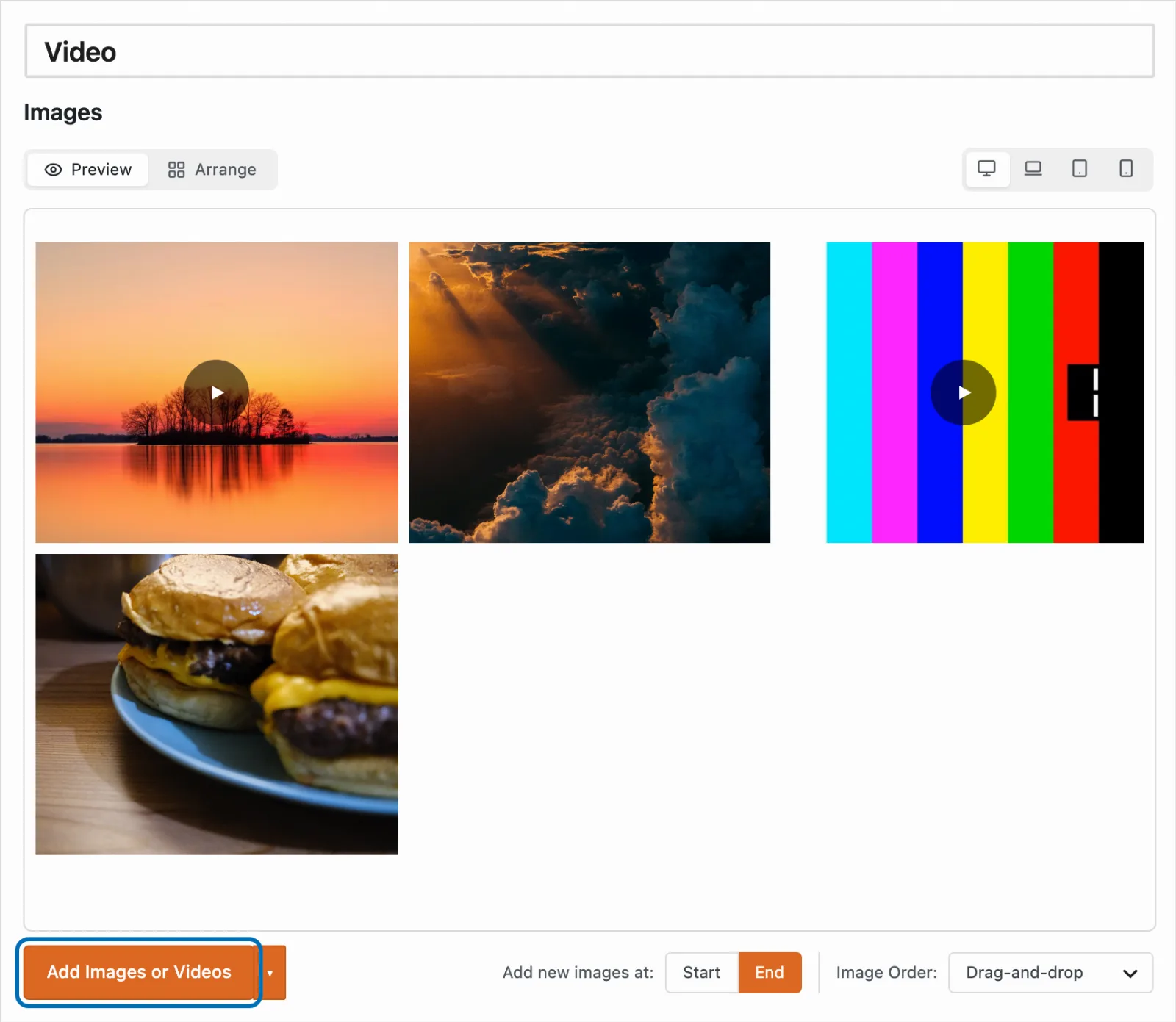
Open your gallery in the editor and click 'Add Images or Videos'.
-
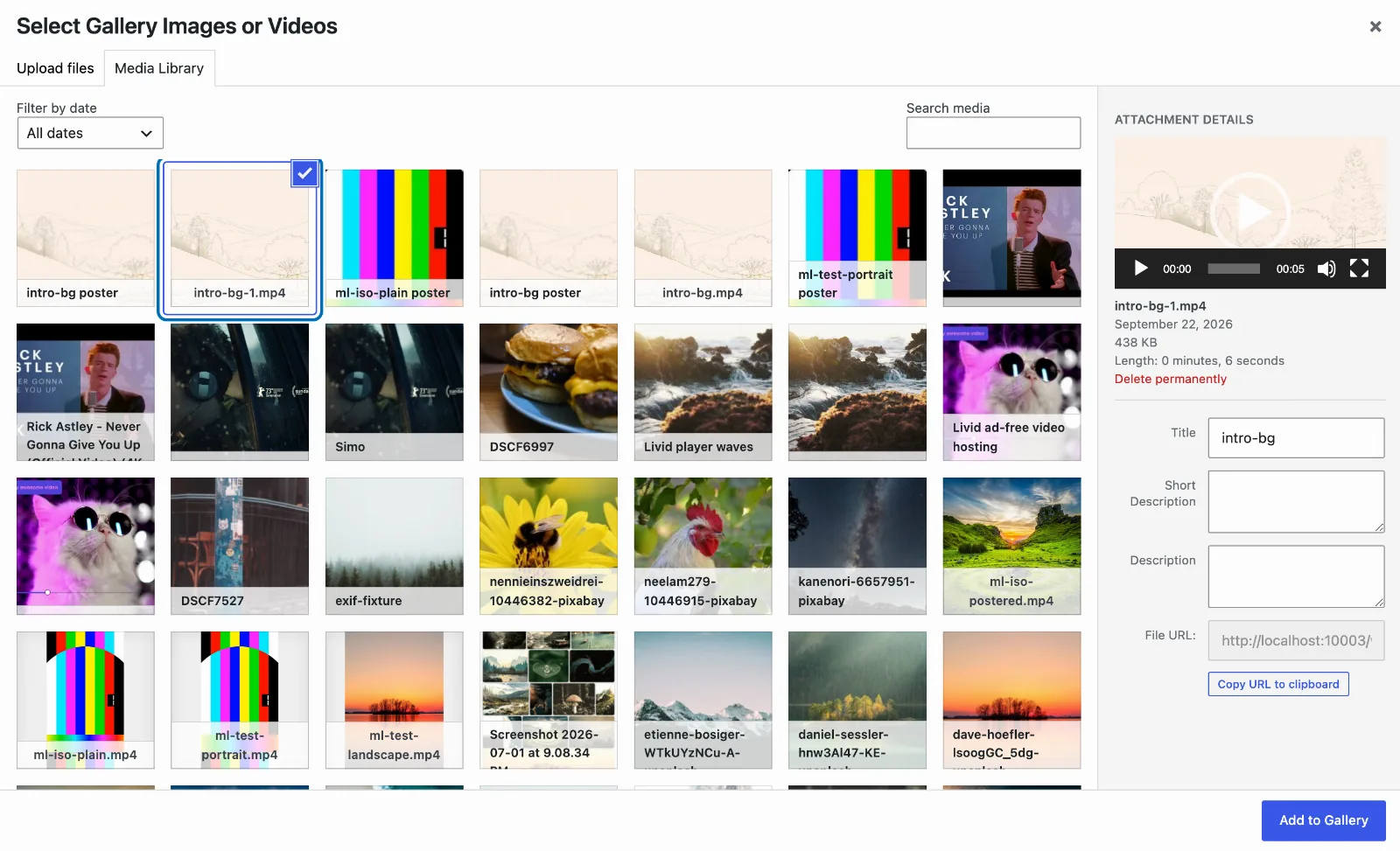
In the Media Library, upload a new video or select one you have already uploaded. You can select images and videos together. Click 'Add to Gallery' when you are done.
-
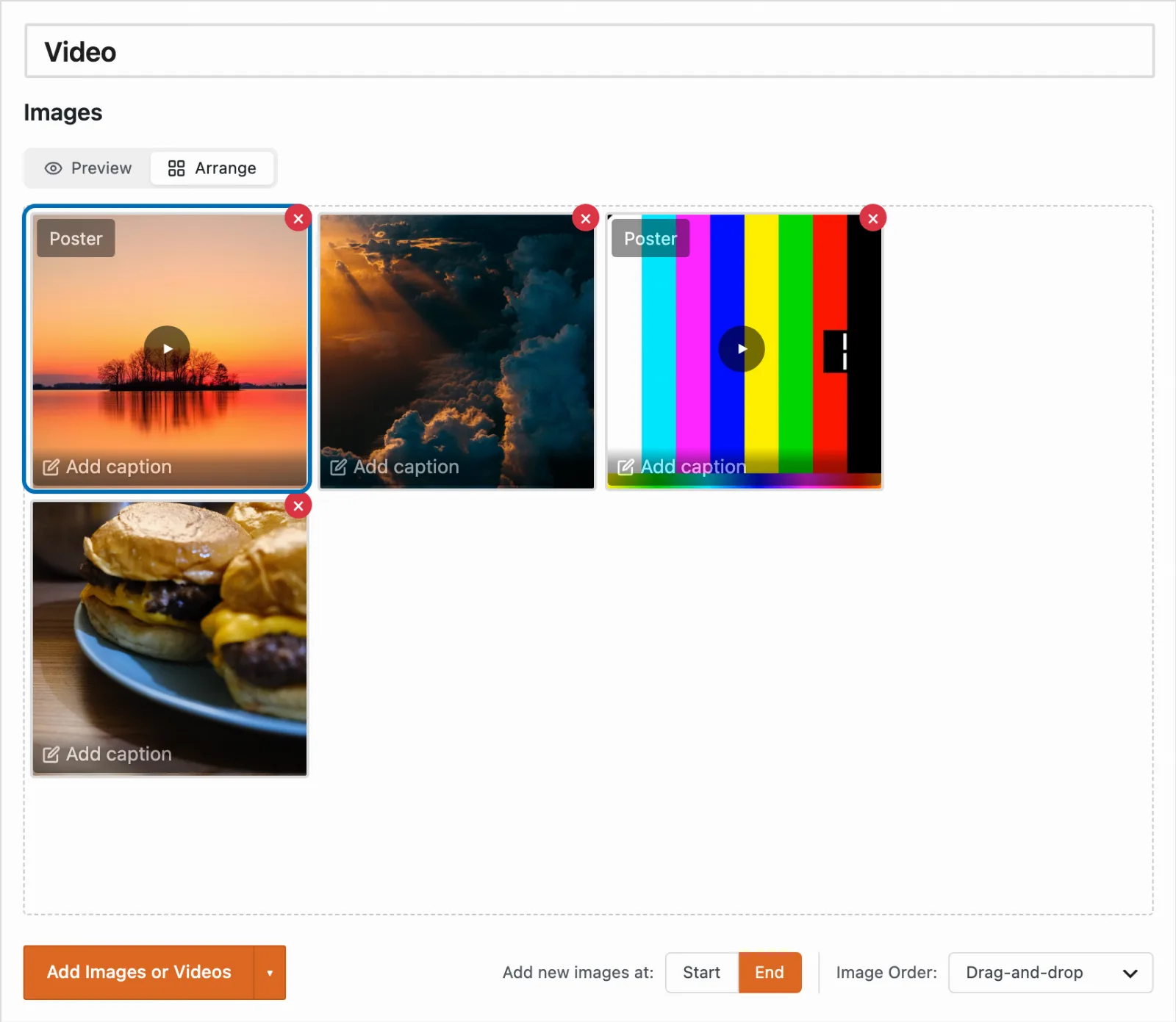
The video appears in the editor with the rest of your gallery items. You can drag it into place, add a caption, or set a poster image the same way you would for an image.
How to Choose How Videos Play
Once your gallery contains a video, a 'Video' section appears in the 'Gallery' panel of the settings sidebar. These settings apply to every video in the gallery.
-
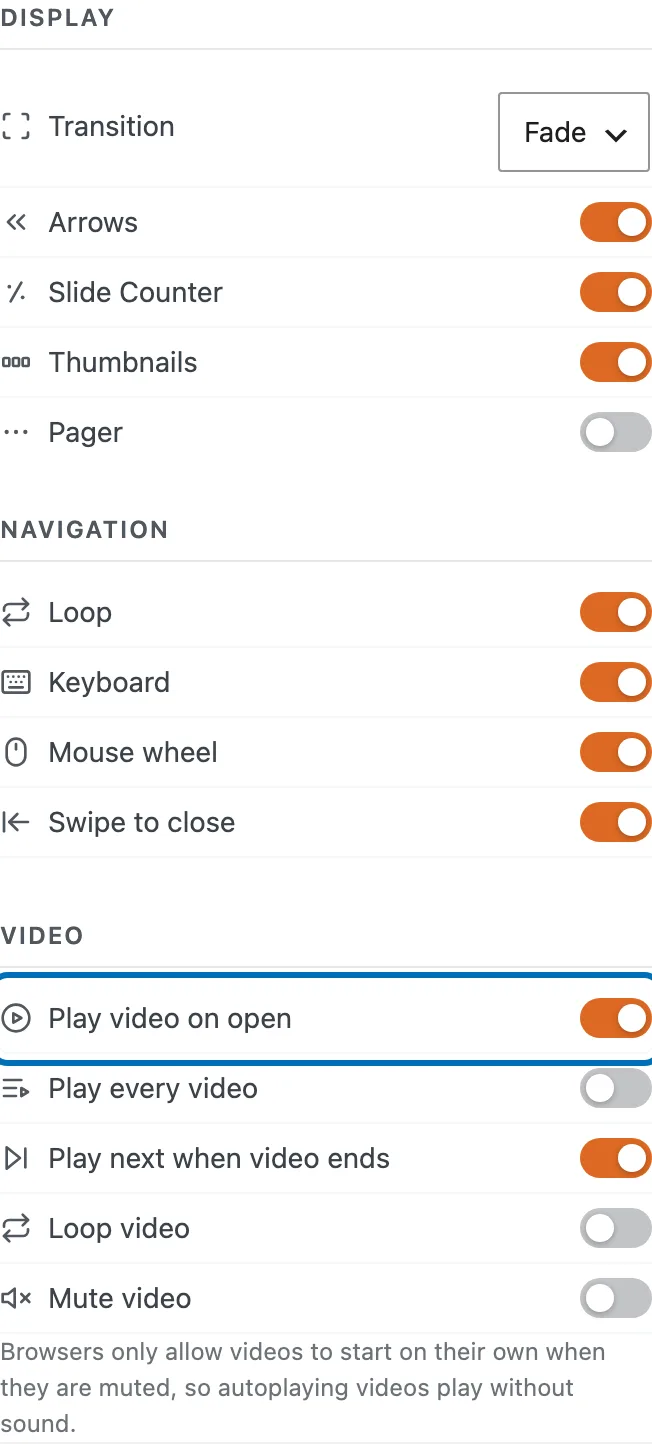
In the settings sidebar, open the 'Gallery' panel and scroll to the 'Video' section.
-
Turn on the options you want:
- 'Play video on open' starts the video as soon as the gallery window opens on it.
- 'Play every video' starts each video as the visitor reaches it, not just the first one.
- 'Play next when video ends' moves on to the next item when a video finishes.
- 'Loop video' restarts each video when it reaches the end.
- 'Mute video' plays videos without sound.
Browsers only let videos start on their own when they are muted, so any video that plays automatically will start without sound.
-
Click 'Save Gallery'.
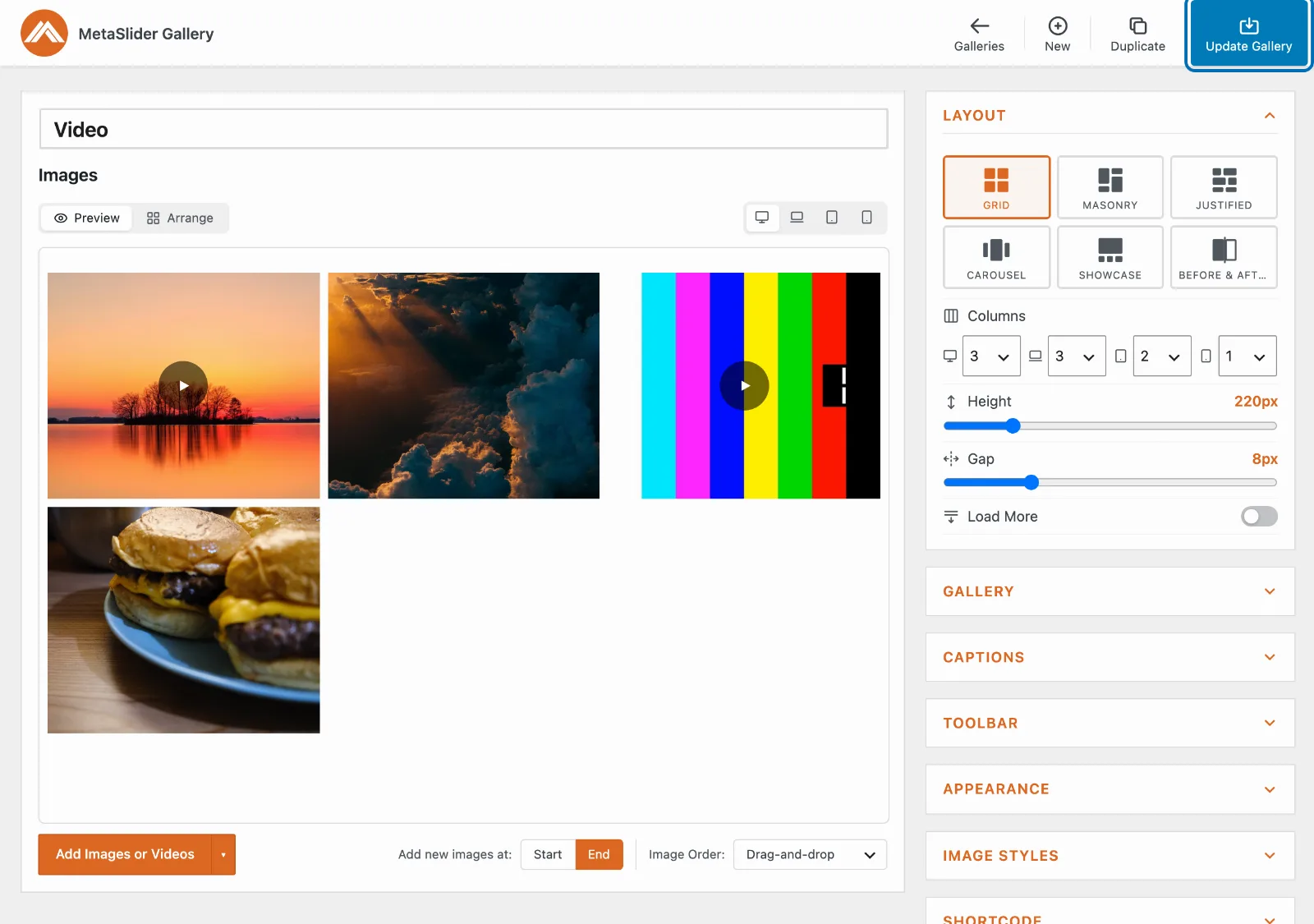
Your gallery now shows your videos alongside your images, and they play in the gallery window the way you chose.