How to Add Livid.com, YouTube, and Vimeo Videos to a Gallery
MetaSlider Gallery can add a video hosted on another site to your gallery from its link, so you can show it without uploading the file to your own site. The video plays in the gallery window, and on the Showcase layout it plays right in the main stage.
- Livid.com videos are included in MetaSlider Gallery.
- YouTube and Vimeo videos need MetaSlider Gallery Pro.
How to Add a Video from Its Link
-
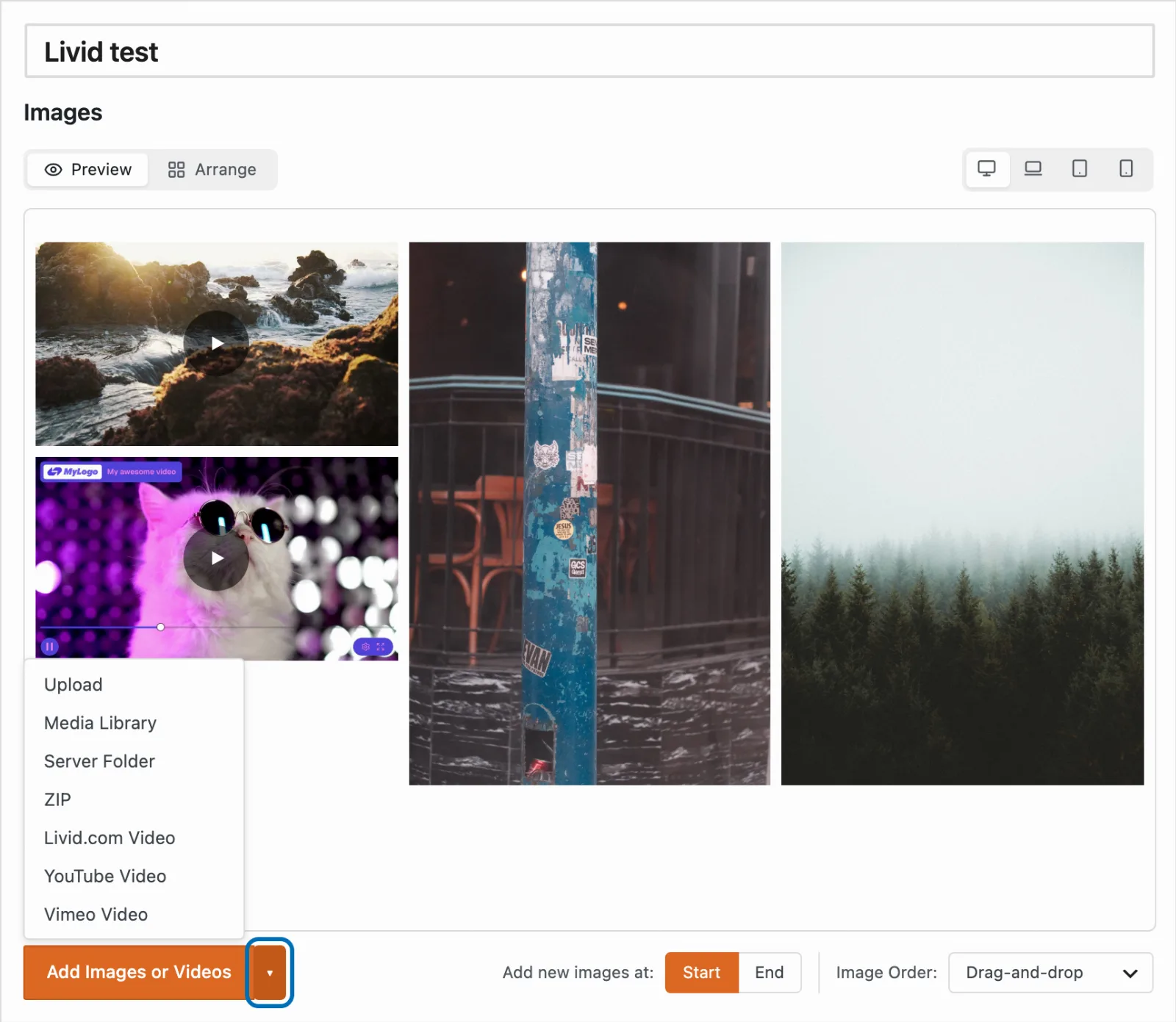
Open your gallery in the editor and click the arrow next to 'Add Images or Videos' to see more ways to add items.
-
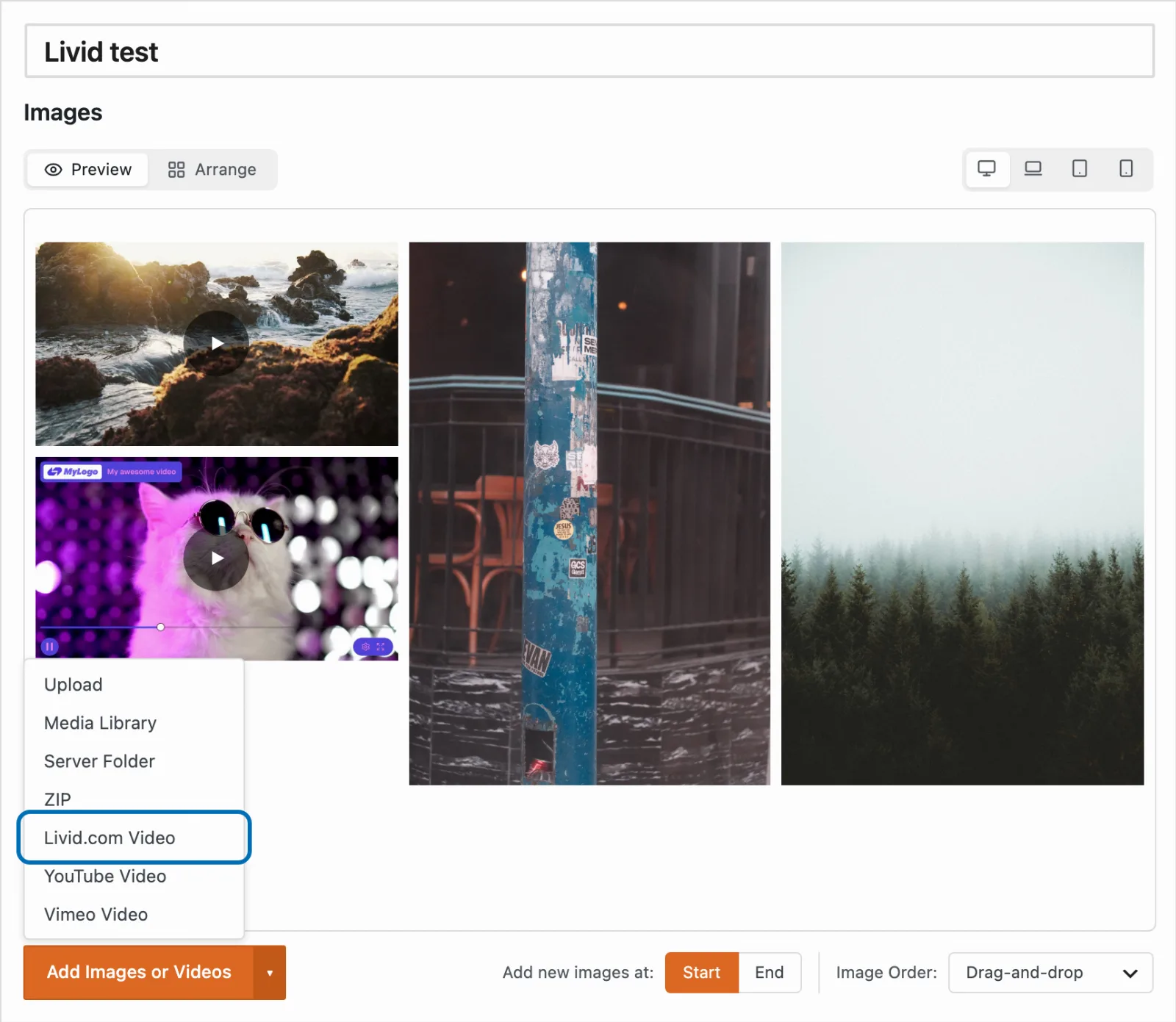
Choose 'Livid.com Video'. If you have MetaSlider Gallery Pro, you can choose 'YouTube Video' or 'Vimeo Video' here instead.
-
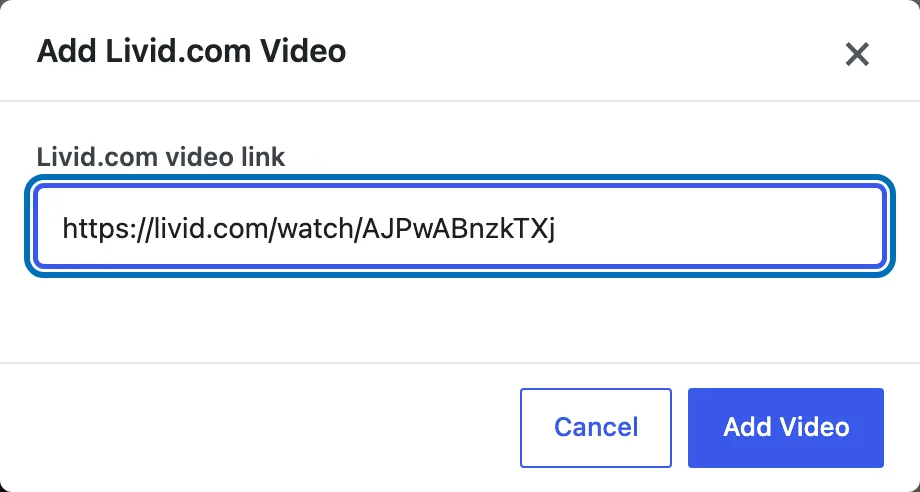
Paste the link to the video, then click 'Add Video'. The video must be public. If the link is not recognised or the video is private, a message in the window explains what went wrong.
-
The video appears in the editor with the rest of your gallery items, using its cover image from Livid.com as the thumbnail. Click 'Save Gallery' to keep it.
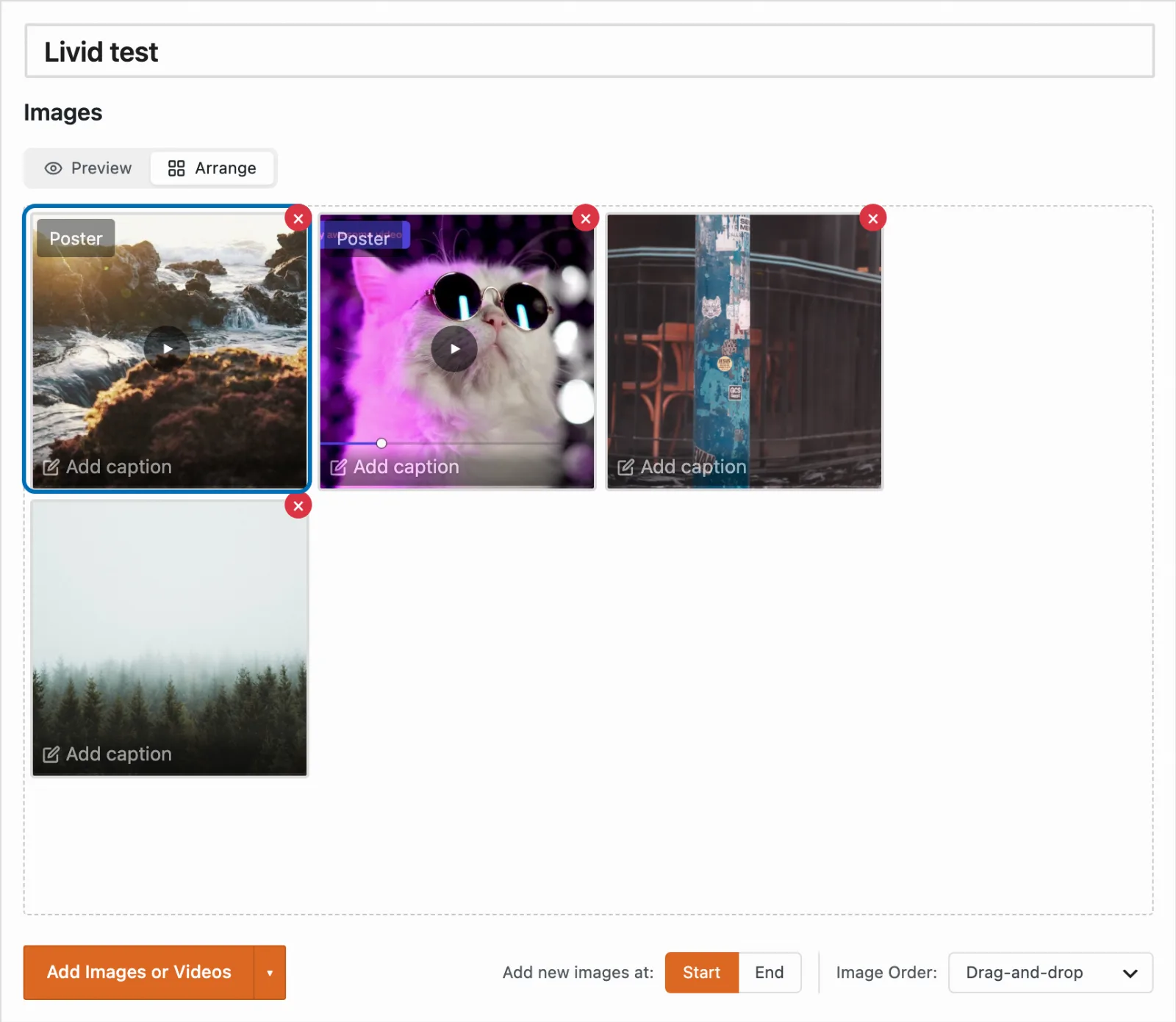
Your gallery now includes the video, and visitors can play it without leaving your page.